
The purpose of this document is to help you change your Internet (Web) Browser away from old Internet Explorer  and begin your journey with a new more modern web browser.
Change your Default Internet (Web) Browser
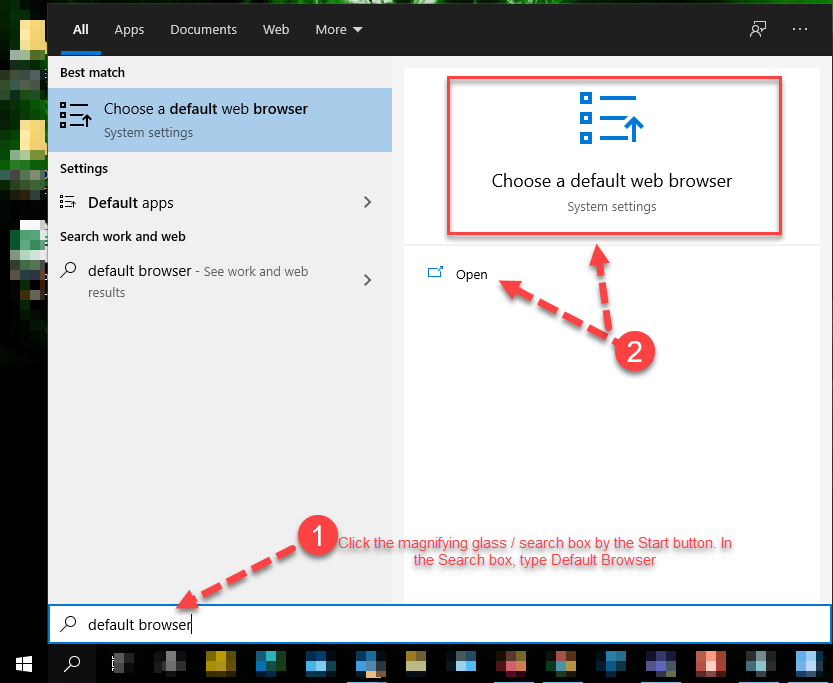
In Windows 10, Click the Magnifying Glass / Search Box by the Start button. In the Search box, type Default Browser.
Click Open for Choose a default web browser:
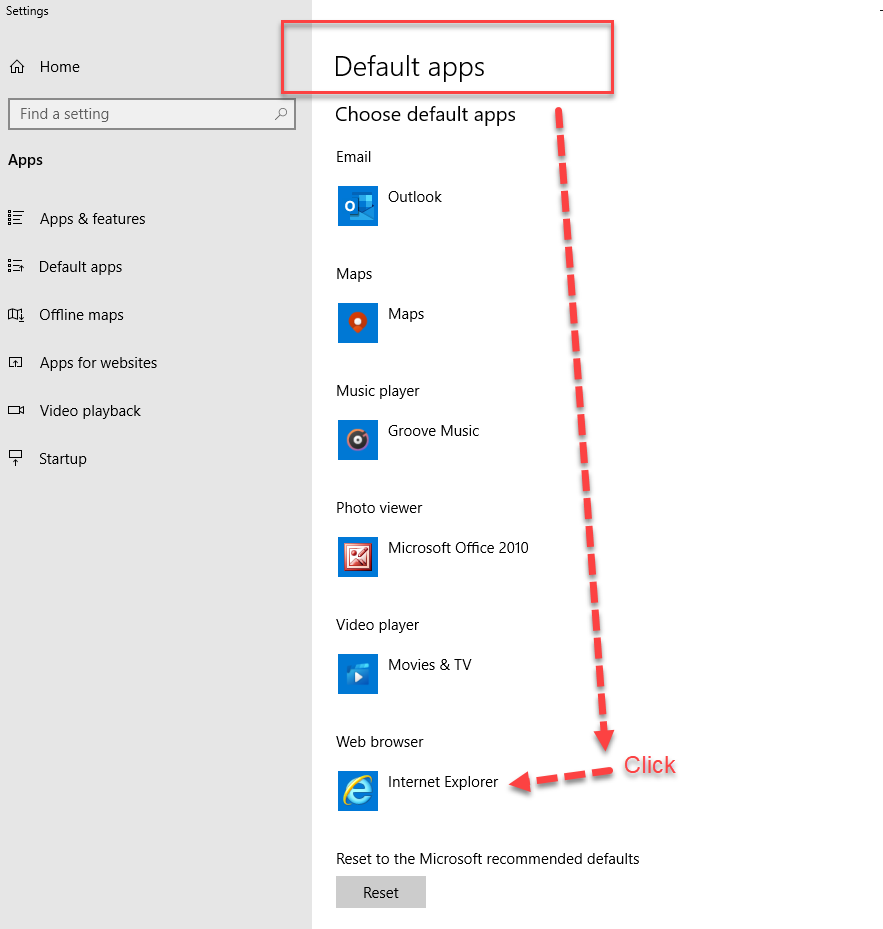
In Default apps, click on the App under Web Browser. Choose any web browser that is not Internet Explorer:
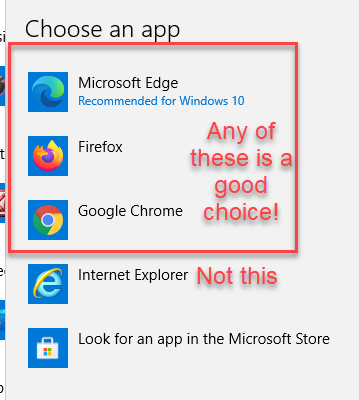
Tip: Once you’ve chosen a new web browser, Close the window.
Import Your Favorites : We’ll show you how with 3 different browsers: Chrome, Firefox, and Edge.
Google Chrome  is already installed on most computers.
Don’t have it? Download it at https://www.google.com/chrome
First: Set Chrome as default internet browser from within Chrome. (showing this for Windows 7 users. Win 10, you’ve already done this)
Click on the three dots ellipsis in the upper right corner, then click Settings
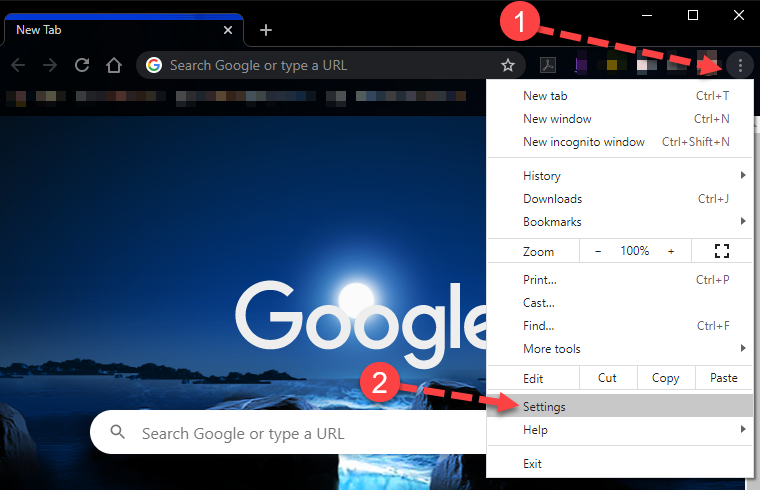
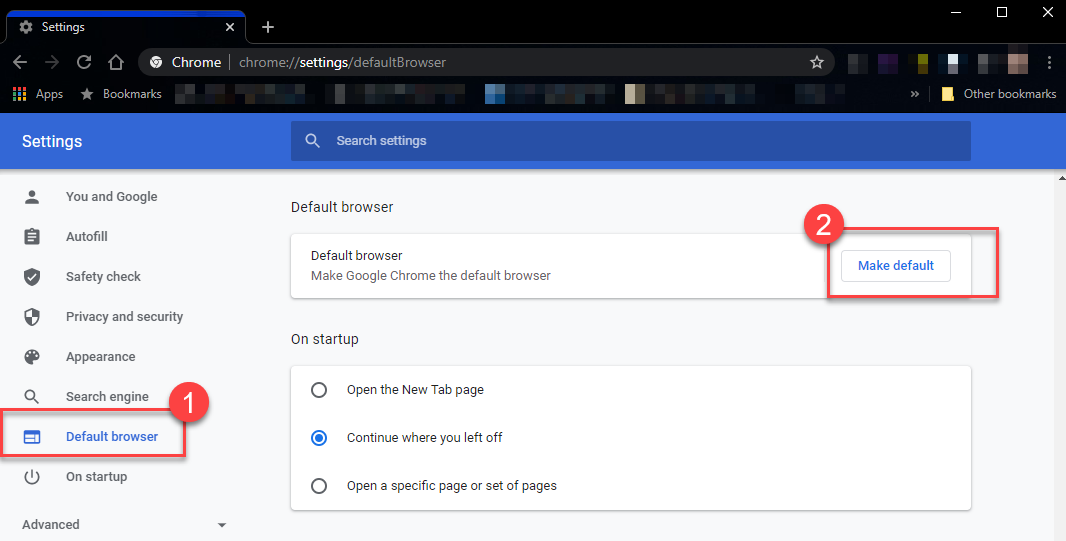
Choose Default Browser on the right, then click the Make Default button (in Windows 10, this will pop open the Default Apps window covered on page 1; in Windows 7, this should maybe ask for confirmation, that’s it).
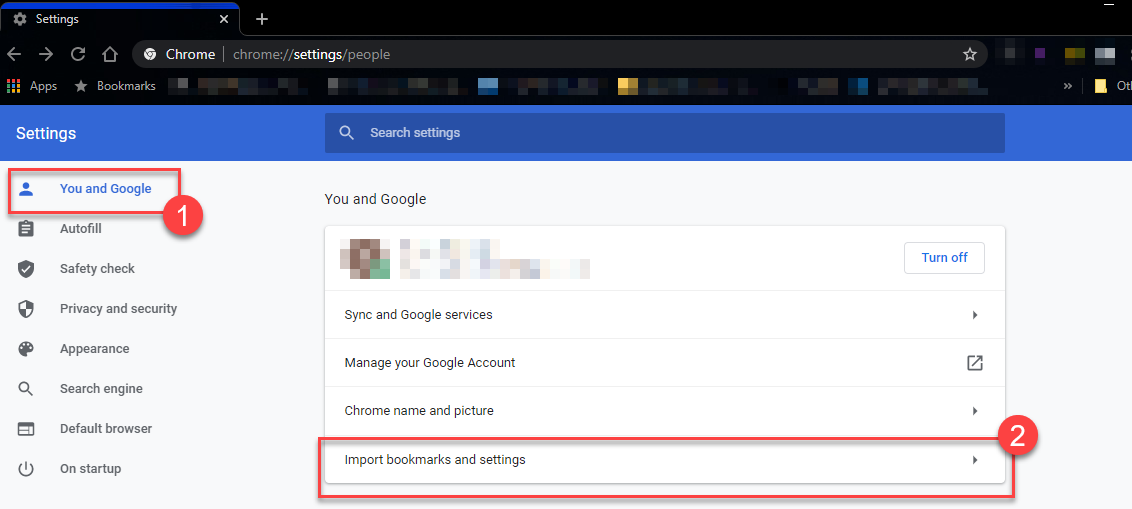
Import your Favorites! Go back to the Chrome Settings, Choose You and Google, then choose Import bookmarks and Settings. Import your settings from Internet Explorer:
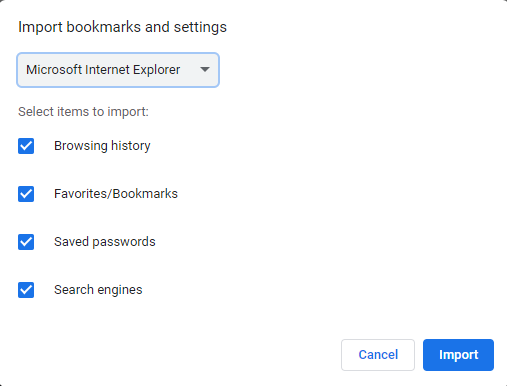
Click Import:
Mozilla Firefox  will be installed on some computers. Find it at https://mozilla.org or https://firefox.com
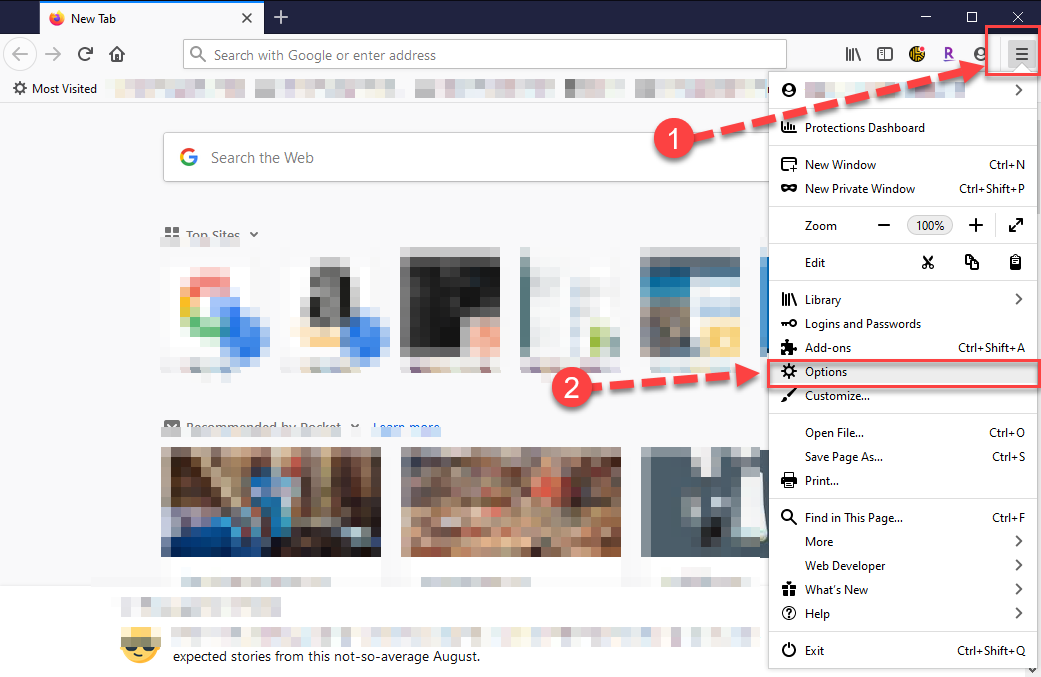
Open Firefox, click on the Hamburger Menu (the 3 stacked lines in upper right), and choose Options:
Make Default: Again this is for Windows 7 users. Windows 10 users, you’ve already done this step.
In General Settings, check “always check if Firefox is your default browser”, then click Make Default:
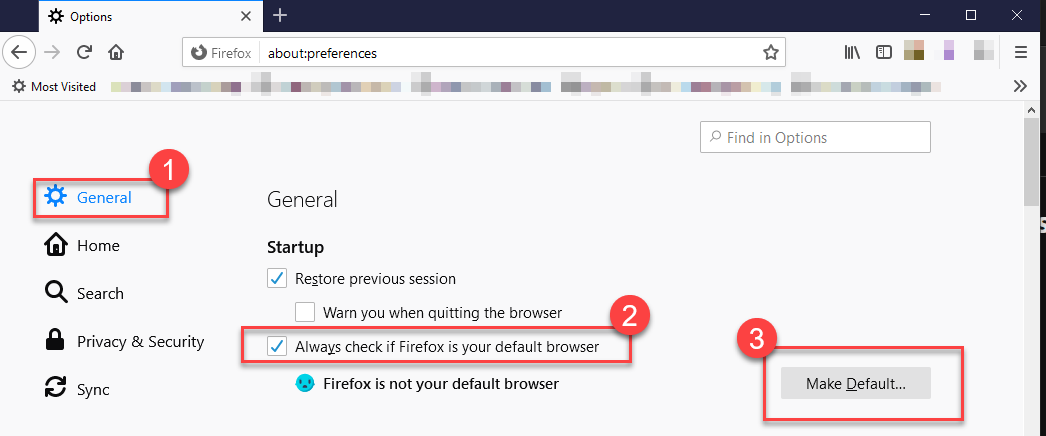
Import your Favorites: The easy way to get where we need to be right now is to Ctrl+Shift+B. This opens the Bookmark Manager.
If you don’t know what Ctrl+Shift+B means, head to the next page. We’ll walk you to the Bookmark Manager the long way.
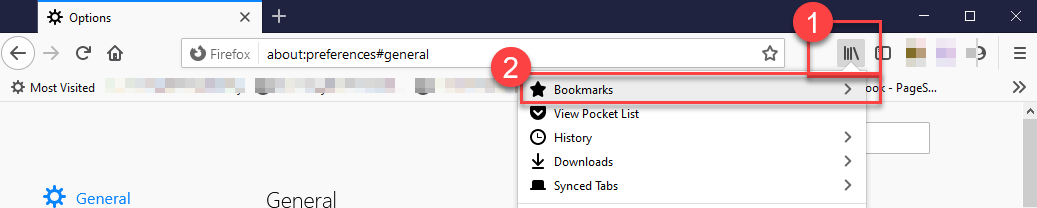
Getting to the Bookmark Manager the long way: Click on the Bookmark icon, Choose Bookmarks:
At the bottom of Bookmarks, click Show all Bookmarks:
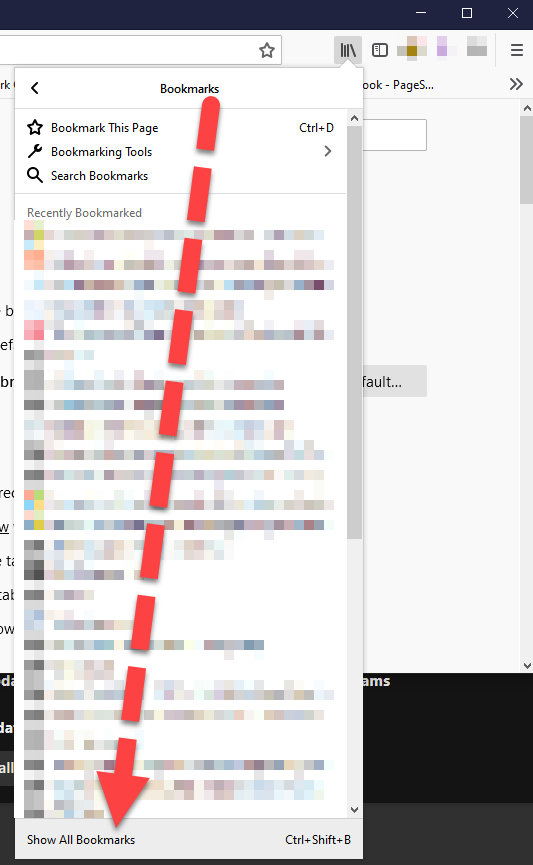
Now we’re all at the Bookmark Manager!
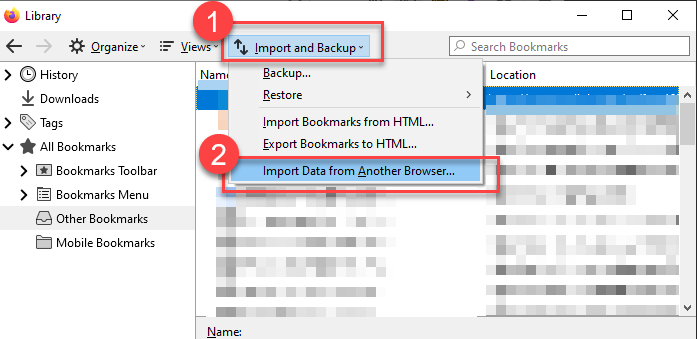
In the pop up window, choose Import and Backup, then choose Import Data from Another Browser
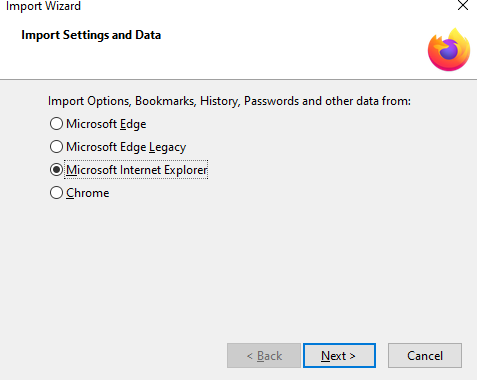
In the Import Wizard, Choose Microsoft Internet Explorer, choose next:
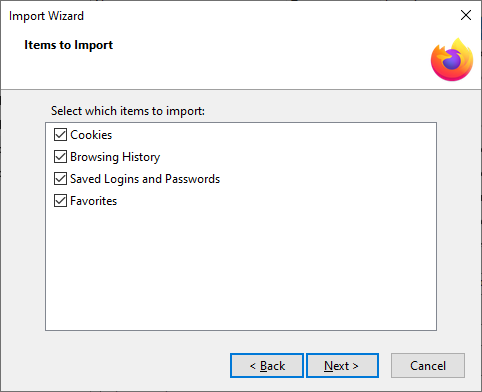
Leave everything checked, choose Next
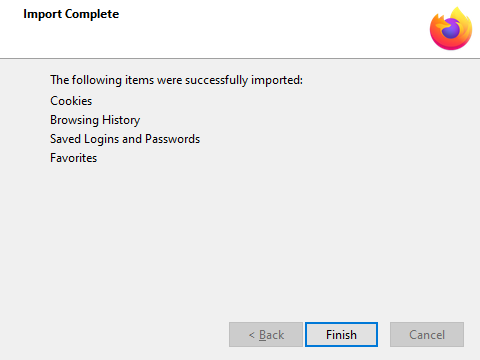
Click Finish
Microsoft Edge  has gotten an update and a fancy new icon recently. The old icon looks like this:
 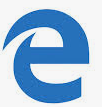 If you have the old icon, you may need to update to the new Edge version before proceeding. Edge should automatically prompt you for the update.
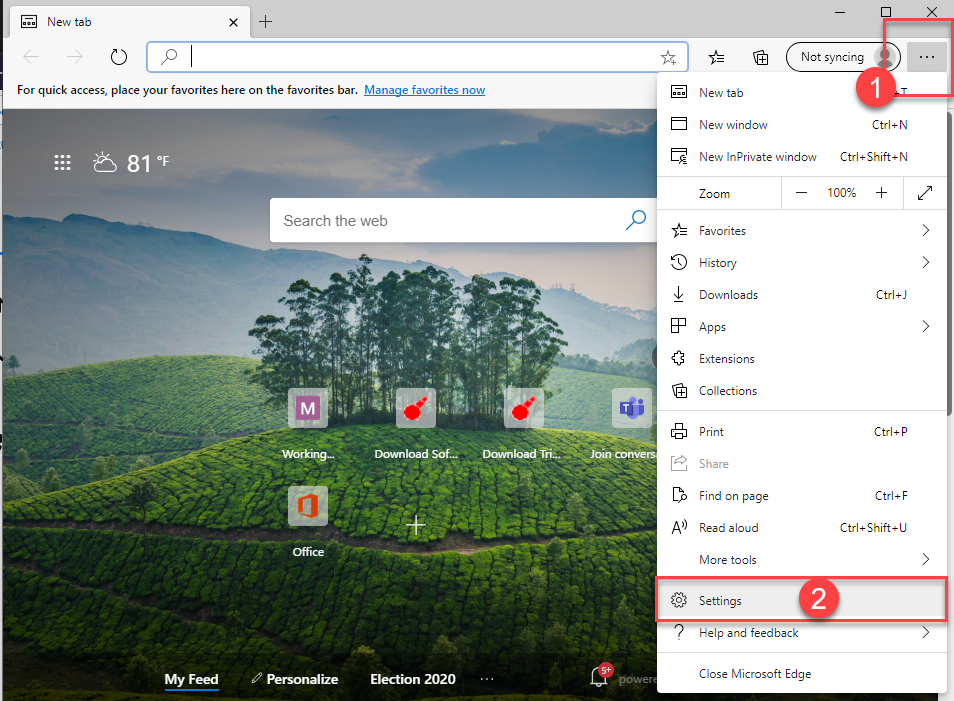
In Edge, click on the three dots ellipis in the upper right corner, then choose Settings:
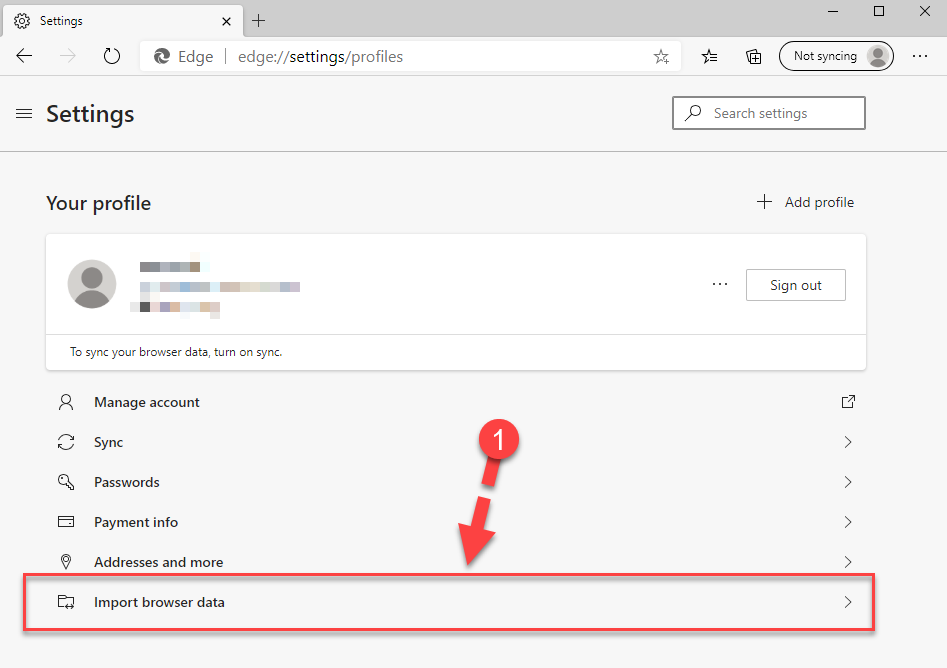
Choose Import browser data:
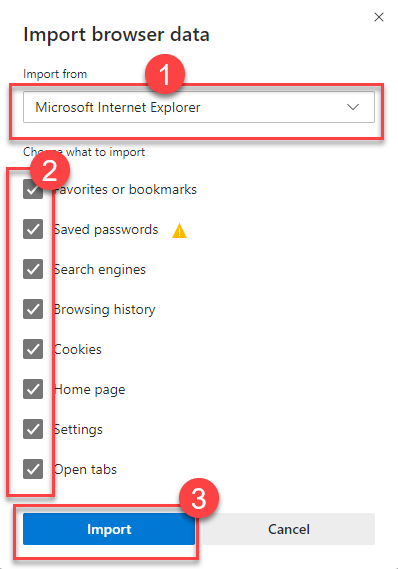
Choose Microsoft Internet Explorer from the drop down menu, keep all boxes checked, and click Import:
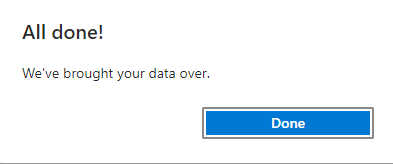
Click Done!
We hope these pages have been helpful in migrating you away from old Internet Explorer and onto a more modern browser!
Comments
0 comments
Article is closed for comments.