
This article is to show you how to change the 2 most common settings in Chrome to allow GraceHill/RAM University to operate on your computer.
Open Chrome and go to the GraceHill/RAM University link (found in RAM Tech).
Click on Test Computer button.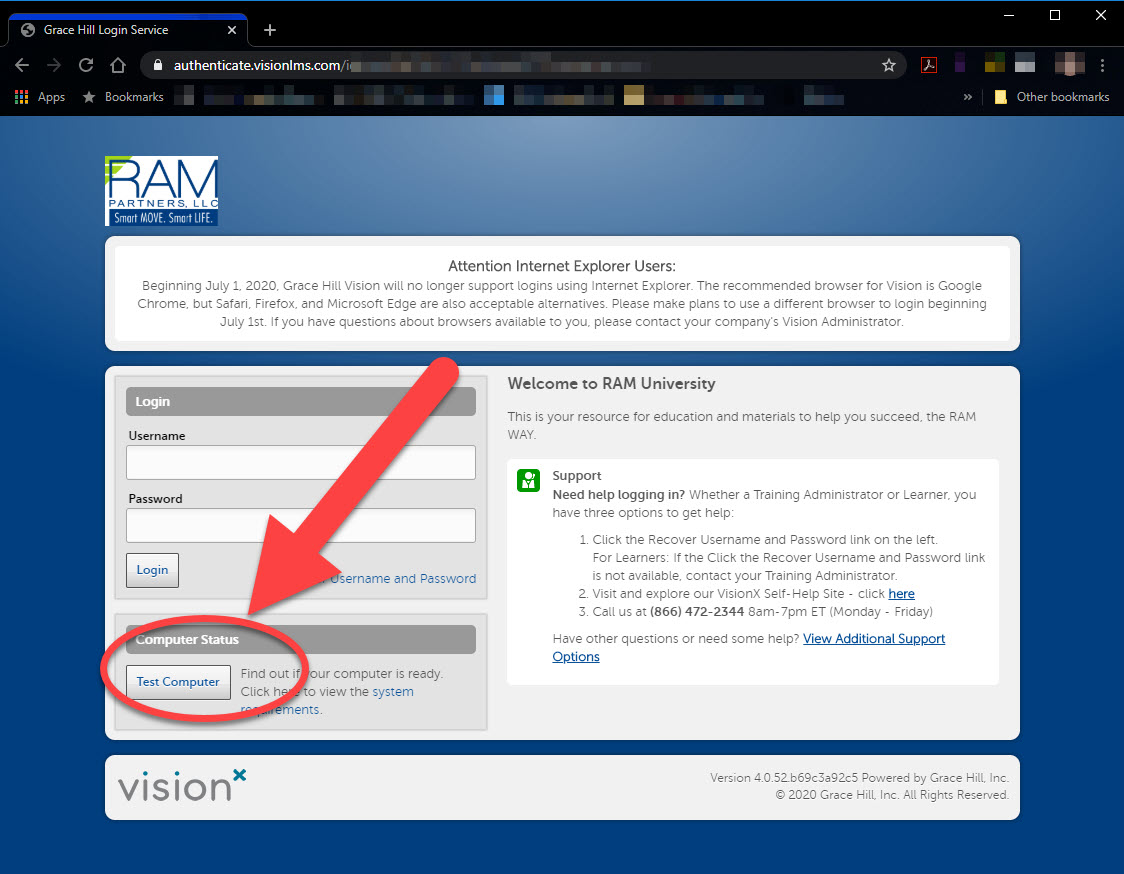
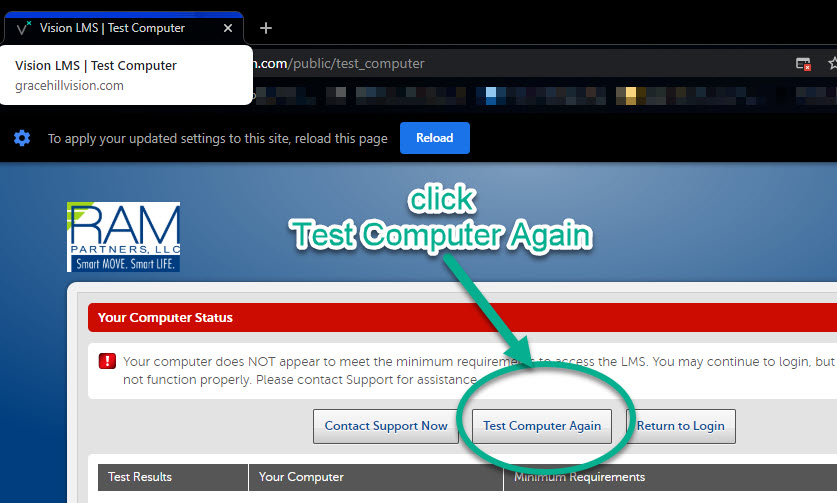
The Test Computer function may return these 2 errors: pop-up blocker and Flash (see example below)
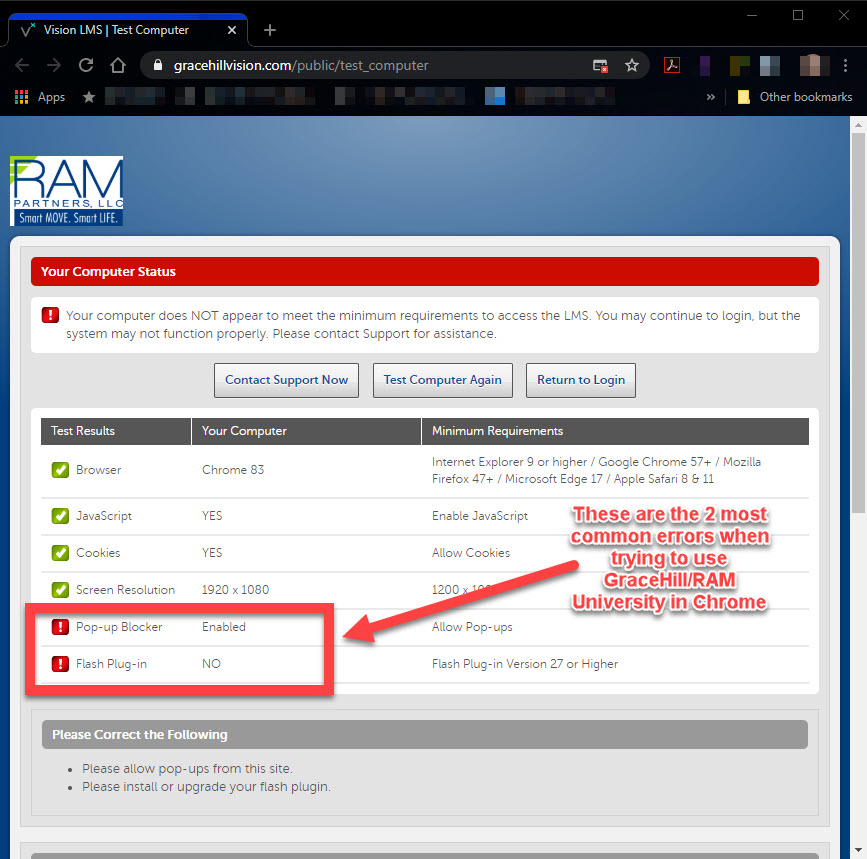
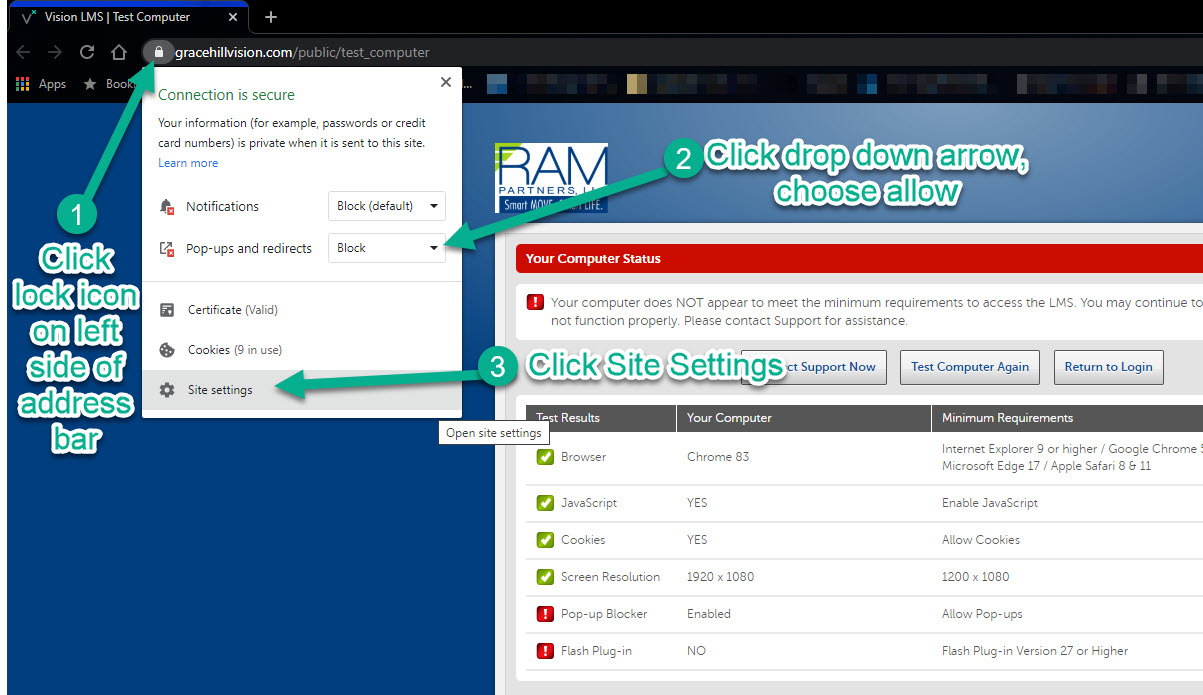
To adjust settings:
1. Click on the lock icon on left side of address bar
2. Change drop down menu on Pop-ups and redirects and choose Allow
3. Click Site Settings
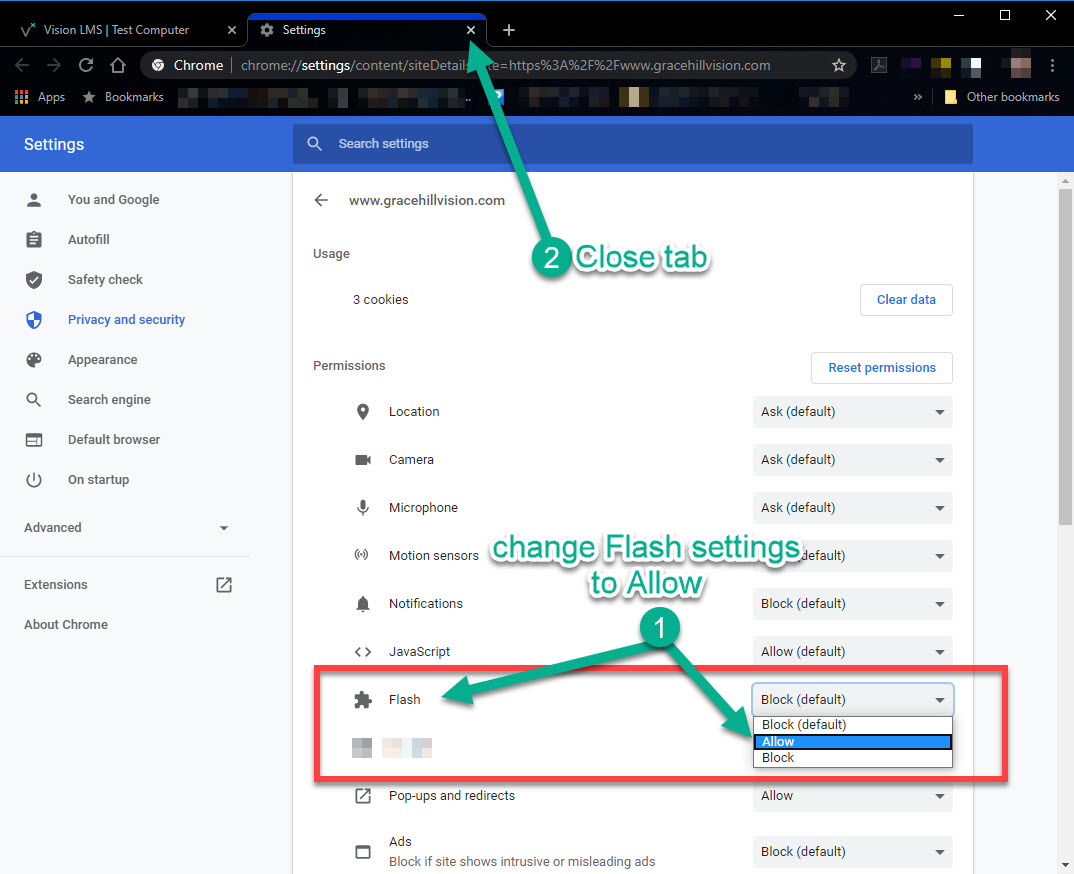
In Site Settings tab:
1. Find Flash in the list, and change it's drop down settings to Allow
2. Close the tab
Click the Test Computer Again button:
Sweet success! Click the Return to Login button:
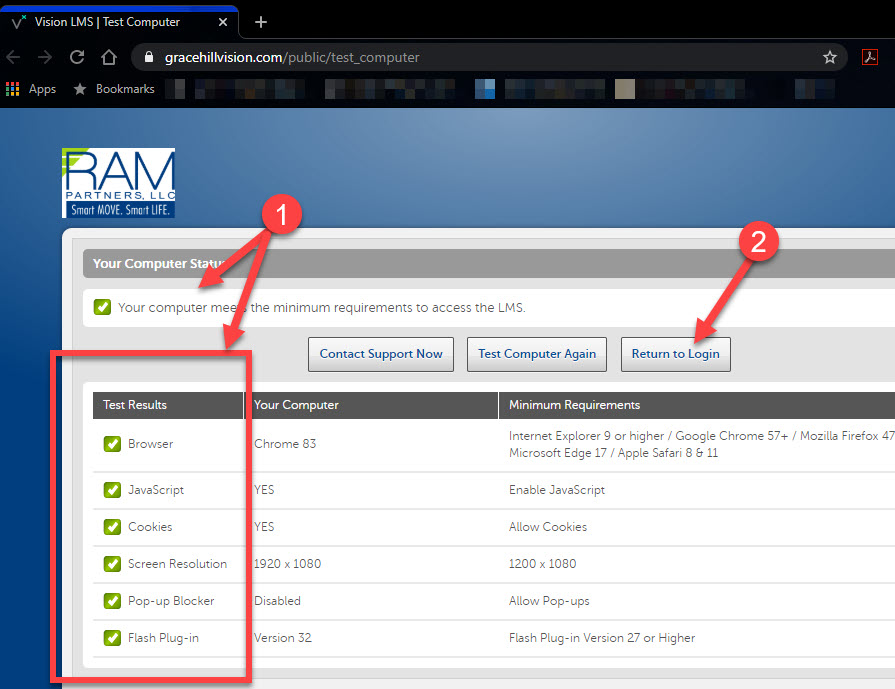
You may now login with your Employee ID and password for GraceHill/RAM University!
Comments
0 comments
Article is closed for comments.