
This article is to assist you with sharing your Calendar with other people. Please pay particular attention to the Level of Details you share with others. It will be rare you will want to share Full Details with anyone except a personal assistant or highly involved supervisor. Availability Only or Limited Details are generally your best choices.
IN OUTLOOK ON PC
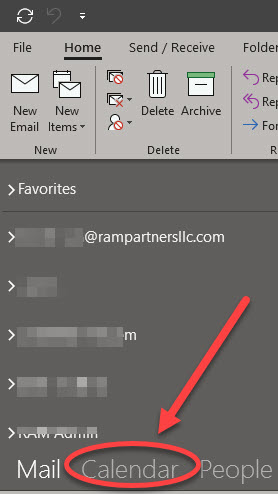
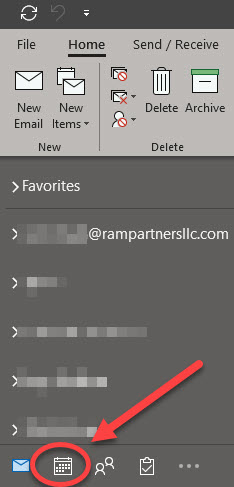
Click on Calendar or Calendar icon located at the bottom left corner
In the Calendar Ribbon, choose Share Calendar

An email will open. Choose the Level of Detail you want to share about your calendar:
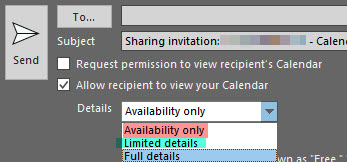
Availability Only: shows only Free, Busy, Tentative, etc but no other details

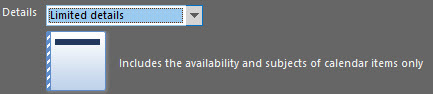
Limited Details: shows Subject of calendar items and your availability status
Full Details: shows entire details including call info, personal notes, etc. (generally only used with personal assistants or highly involved supervisors)
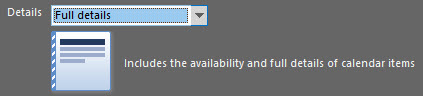
Once you've chosen your Level of Detail you wish to share,
1. fill in the "To",
2. add any comments you wish to share in the body of the email, and
3. click Send:
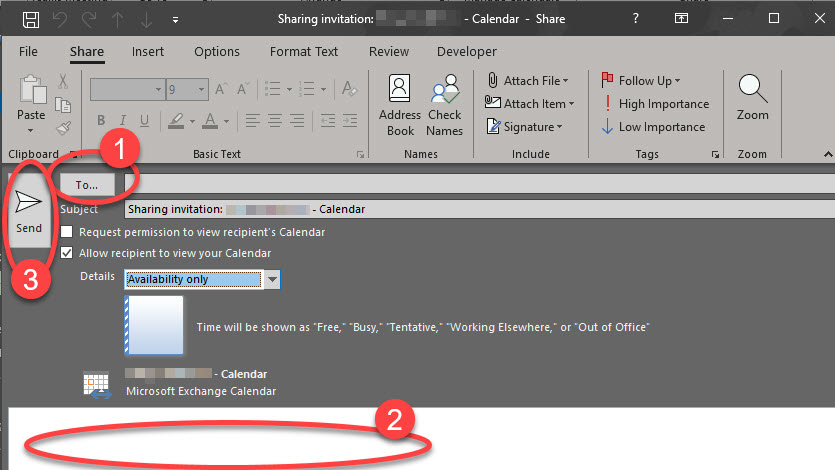
Congratulations! You have now shared your Calendar with another person!
Comments
0 comments
Article is closed for comments.