
This article is to assist you in clearing your cache and cookies from the 5 most popular Windows internet browsers. Scroll through this article until you find the browser of your choice. We have included the icon next to the browser name for your reference.
GOOGLE CHROME 
In Google Chrome, press Ctrl + H to open the History tab. Click on Clear Browsing Data
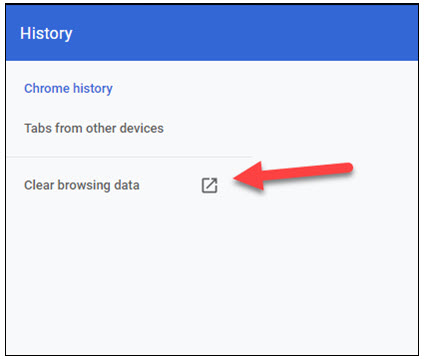
In the pop up window, choose:
1. Advanced tab
2. Time Range "All Time"
3. Check Browsing History, Download History, Cookies and other site date, Cached images and files
4. Click Clear data
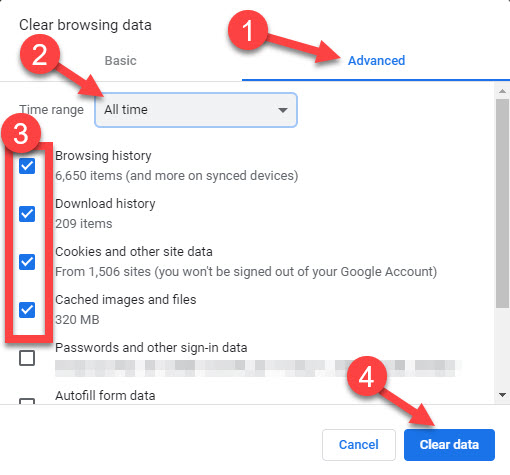
When this is complete, close Chrome and reopen.
MOZILLA FIREFOX 
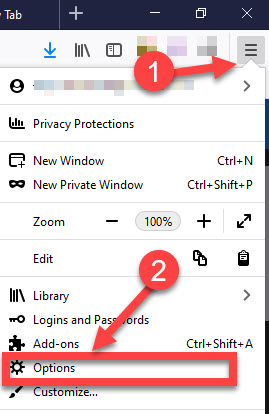
In Firefox, click on hamburger menu in upper right corner (the 3 horizontal lines). Choose Options
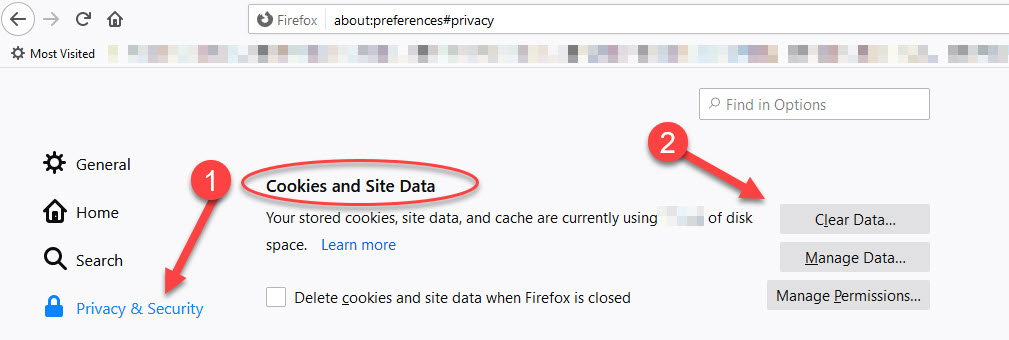
Choose Privacy & Security, scroll down to Cookies and Site Data, click on Clear Data:
Check both boxes, then click Clear:
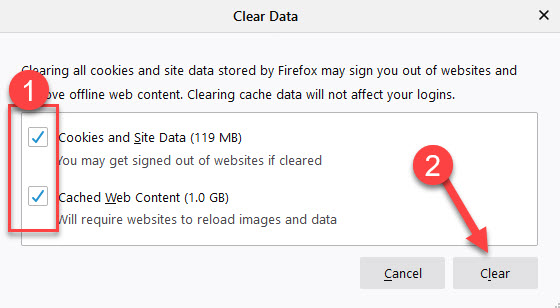
When this is complete, close Firefox and reopen.
MICROSOFT EDGE (old Edge with blue E) 
In (old) Edge, click on hamburger menu in upper right corner (the 3 horizontal dots). Choose Settings:
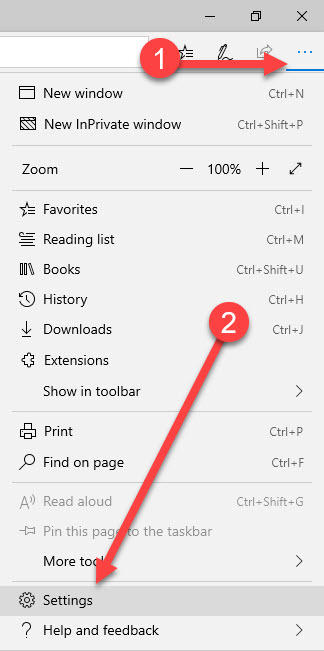
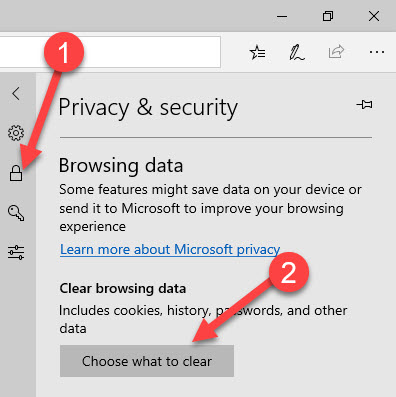
Click on the Lock icon, then under Browsing data, click the Choose what to clear button:
At the minimum, check the top 5 boxes, then click Clear:
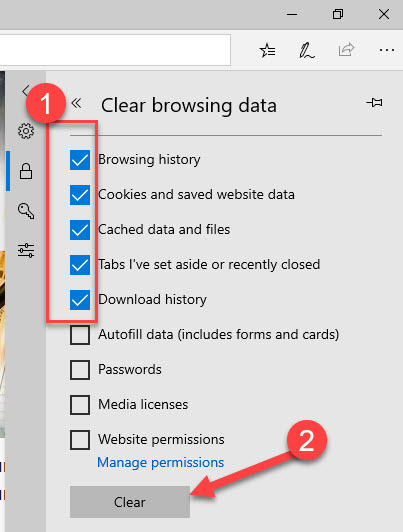
Once complete, close Edge and reopen.
MICROSOFT EDGE (new Edge with blue/green swirl icon) 
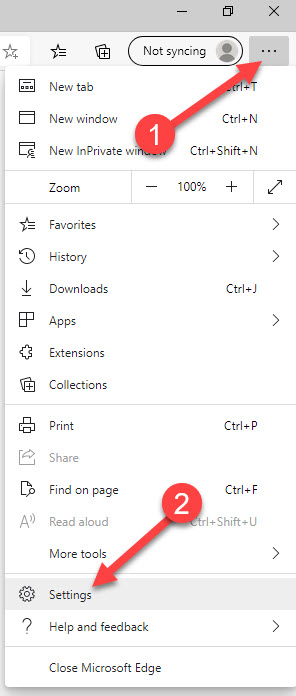
In (new) Edge, click on hamburger menu in upper right corner (the 3 horizontal dots). Choose Settings:
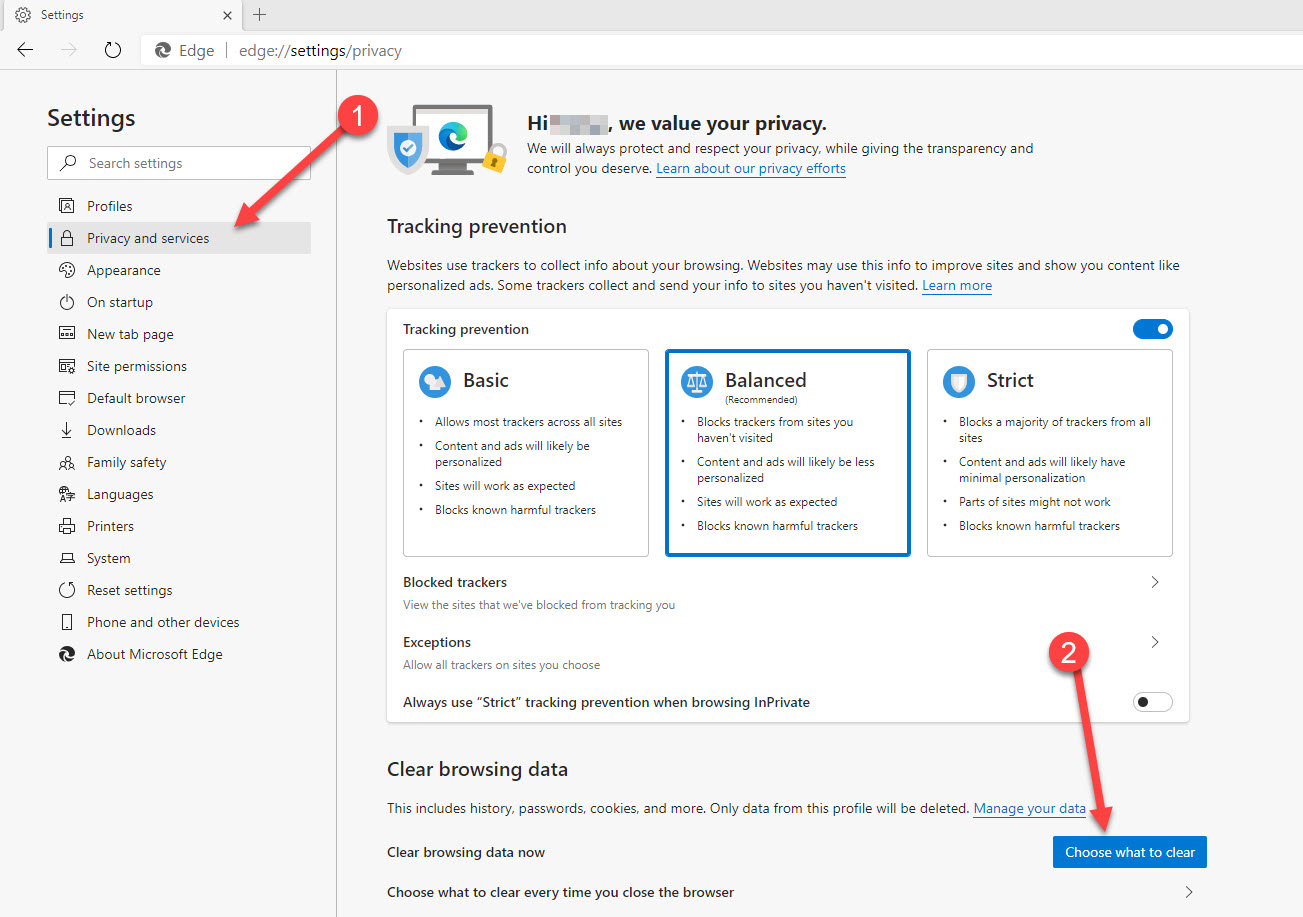
In Settings, choose Privacy and services, then click Choose what to clear button:
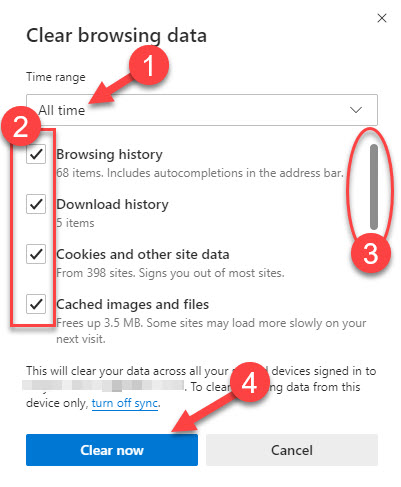
In Clear browsing data window:
1, change Time range to All time
2.Check the top 4 boxes at the minimum
3. Use the scroll bar to scroll down for more choices
4. Click Clear now button
Once complete, close Edge and reopen.
INTERNET EXPLORER (old Internet Explorer; consider discontinue use if possible) 
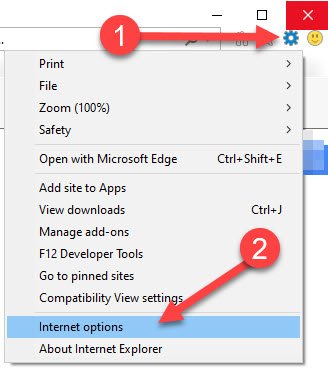
Click on the Settings gear icon, then choose Internet options:
On the General tab, under Browsing history, click the Delete button:
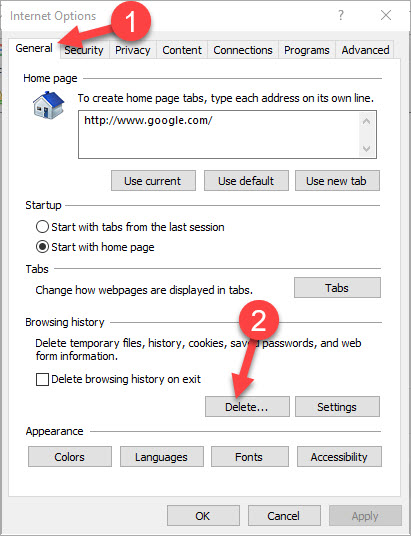
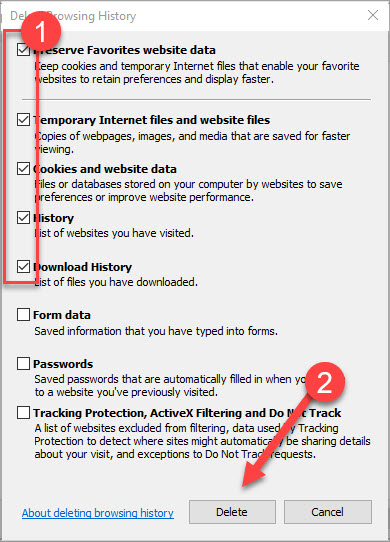
In Delete Browsing History window, check the top 4 boxes at minimum, then click Delete button:
Back at the Internet Options window, click Apply, then click OK:
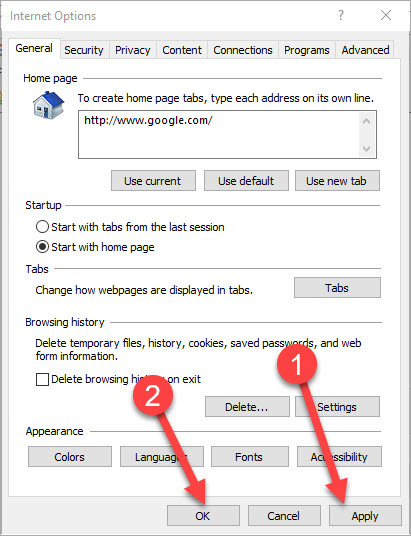
Once complete, close Internet Explorer and reopen.
Comments
0 comments
Article is closed for comments.